



This likely happens because two or more machines are using the same Windows username. We recommend that all Windows usernames be unique, as duplicate names can cause confusion and inconsistencies in reports.
As a best practice, use usernames that clearly identify each employee — for example, using their full name or a naming pattern that makes it easy to associate the user with the person.
When you update the duplicate Windows usernames, the inconsistency is automatically fixed, as Monitoo recognizes the username change without requiring any manual action.
In other words, it is not necessary (and not recommended) to delete anything inside app.monitoo, because doing so will erase ALL data related to that employee.
Below is a tutorial explaining how to change a Windows username:
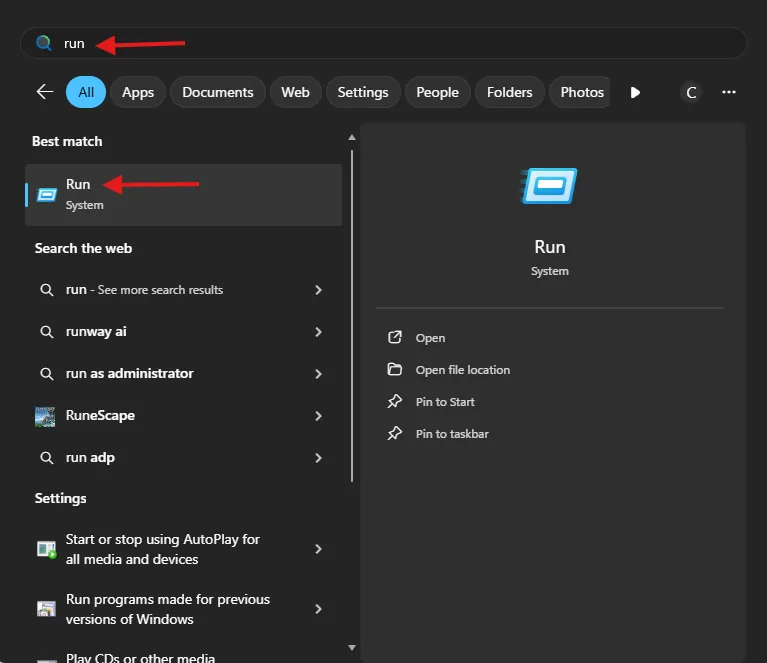
- Open the Windows Run dialog by pressing Win + R or by searching for it in the Windows Search menu.
2. Search for the command netplwiz and confirm.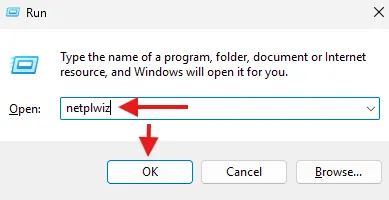
3. Find the user whose name you want to change and open Properties.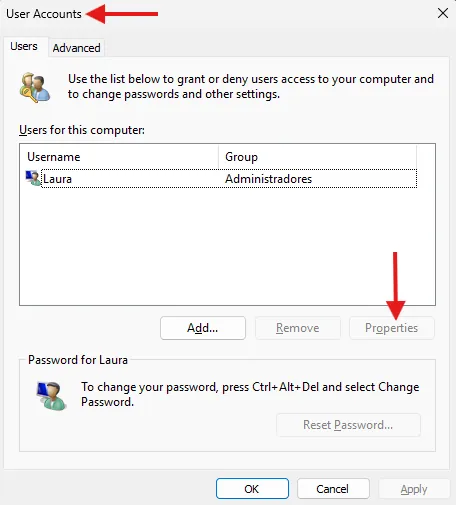
- After opening Properties, you can change the name, select the Save option, and restart the employee’s computer.
Great! Thanks for your feedback.
Tell our team what was missing: contact support on WhatsApp.
